Security
The TLS certificate clients see, a tamper-evident audit trail of connections, and optional recording of each session to video.
The Security pane controls how the server proves its identity to clients, and what ProRDP keeps as a record of who connected and what happened. Auditing and recording are both off until you turn them on.
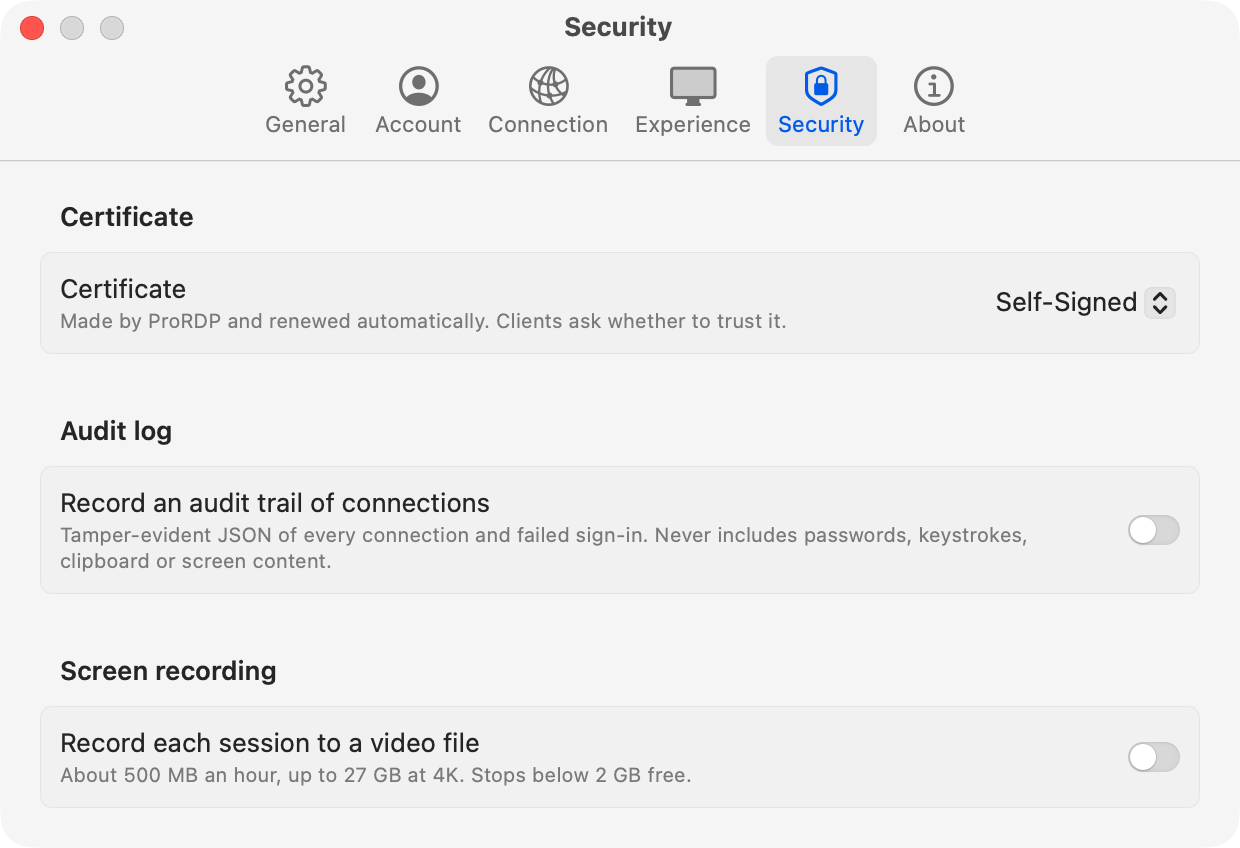
Certificate
Every RDP connection to ProRDP is encrypted with TLS. The certificate is what the server presents to prove its identity. Clients check it and warn you if they can’t verify it.
Certificate source
| Option | What the server presents | Best for |
|---|---|---|
| Self-Signed (default) | A certificate ProRDP creates and renews itself. Clients ask once whether to trust it. | Home networks, personal use, and getting started. |
| Keychain Certificate | A certificate already in your keychain, with its private key. | Certificates issued by your organization, MDM, or your own certificate authority (CA). |
| New Certificate | The self-signed certificate, until you install one signed by a CA. | Getting a certificate for a name like mac.example.com signed by a CA your clients already trust. |
Changing the certificate while the server is running needs a restart, and the restart banner appears.
Self-Signed
ProRDP creates the certificate the first time the server starts, and keeps it in
~/Library/Application Support/ProRDP/. Because no CA vouches for it, each client asks whether to
trust it the first time it connects, and remembers your answer.
The certificate follows the rules that Apple’s TLS checks enforce, so Mac clients accept it as readily as Windows clients:
- Names. It lists
localhost, the Mac’s host name (with and without.local), and every network address the Mac currently has, as Subject Alternative Names. - Validity. It’s valid for 397 days, just under Apple’s 398-day limit for TLS certificates.
- Usage. It’s marked for TLS server authentication.
It renews itself within 30 days of expiring, and whenever the Mac’s names or addresses change, for example after a new DHCP lease. The private key stays the same, but clients see a new certificate and ask about it again.
Answer the trust prompt promptly. The Windows App gives up on its own certificate prompt after about 20 seconds, then shows a misleading error about an expired password (code 0x207). The prompt appears as a sheet on the connection window and can hide behind other windows.
Keychain Certificate
Uses a certificate that’s already on the Mac: enrolled through Active Directory or MDM, imported
from a .p12 file, or issued by your own CA. The list shows only certificates that meet all of
these requirements:
- Their private key is in your keychain.
- They haven’t expired.
- They use an RSA or EC key.
- They list Server Authentication in their extended key usage.
If no certificate qualifies, the pane says “No usable certificates”. Use Refresh after adding one in Keychain Access.
Once you choose a certificate, the caption shows its expiry date. It warns you in orange if:
- It expires within 30 days. Certificates from a CA don’t renew themselves.
- It’s valid for more than 398 days. Windows clients accept it, but Mac clients refuse it.
- It has left the keychain or expired. The server won’t start until you choose another, rather than quietly presenting a different certificate to clients that trusted this one.
As soon as you choose a certificate, ProRDP tries its private key once. If macOS asks whether ProRDP may use the key, click Always Allow. Asking now means the prompt doesn’t appear during a client’s connection, when nobody would be there to answer it. Intermediate certificates from your keychain are sent along with the certificate, so clients can build the full chain.
New Certificate
Walks you through getting a certificate signed by a CA, using the server’s existing private key.
- Under Names to request, enter the names clients will use to connect, separated by commas.
It suggests this Mac’s host names, so add the name people actually type, such as
mac.example.com. IP addresses are allowed, but most public CAs refuse them. Clients must connect using one of these names. - Click Save Signing Request. ProRDP saves a PKCS#10
.csrfile. It asks for the same properties as the self-signed certificate: TLS server authentication, and your names as Subject Alternative Names. The first name is also used as the Common Name. - Send the request to your CA. If Mac clients will connect, keep the validity to 398 days or less. Apple’s limit applies to CA-issued certificates too.
- Click Install Signed Certificate and choose the file the CA sends back. ProRDP accepts PEM
(one certificate, or the full chain in any order) and single DER
.ceror.crtfiles. It doesn’t read PKCS#7.p7bbundles, so ask your CA for PEM instead. - The pane switches to Keychain Certificate with the new certificate selected. Restart the server to start using it.
Before installing, ProRDP checks that the certificate matches a request ProRDP made, hasn’t expired, and is meant for a TLS server. Anything else is refused, with the reason. The certificate and any intermediates are added to your login keychain, where they appear in Keychain Access like any other certificate. To renew, save a new request and install the new certificate the same way.
Audit log
Record an audit trail of connections
Keeps a record of every connection, sign-in, and failed sign-in, for security reviews and compliance. It’s off by default, because an audit trail should be a deliberate choice with a retention policy behind it.
Default: Off.
Format. Records are written as JSON Lines: one JSON object per line, added to the end of the
file and never rewritten. Splunk, Elastic, and most log pipelines can read them without extra
setup, and they’re easy to read with tail and jq. Timestamps are in UTC, to the millisecond.
Every record from one connection shares a session identifier, so you can follow a connection from
start to finish.
{"seq":4,"time":"2026-08-24T01:18:33.102Z","event":"auth.failed","session":"59c23493",
 "data":{"method":"CredSSP/NTLMv2","peer":"192.168.1.159",
         "reason":"unknown user intruder","username":"intruder"},
 "prev":"6f1c…","hash":"a83b…"}
What’s recorded:
| Event | Recorded when |
|---|---|
server.started, server.stopped | The server starts or stops, including its port, security mode, display mode, and certificate fingerprint. |
connection.opened | A client connects, with its network address. |
security.negotiated | TLS is set up, with the protocol, TLS version, cipher, and certificate. |
auth.succeeded, auth.failed | Credentials are accepted or rejected, with the username tried and the reason for any failure. |
session.started, session.resized, session.ended | A session starts (with the client’s machine name and resolution), changes size, or ends (with the reason and duration). |
clipboard.transfer | Clipboard content crosses the connection, recording its direction, format, and size only. |
clipboard.file | A file finishes crossing, with its name, size, direction, and where it was saved. |
recording.started, recording.stopped | A session recording starts or stops. |
display.takeover, display.restored | Control mode blacks out the Mac’s screens or restores them. |
audit.started, audit.stopped | Auditing is turned on or off, so turning it off to cover tracks leaves a record. |
server.error | Something an administrator should know about. |
What’s never recorded: passwords, password hashes, authentication secrets, keystrokes, clipboard contents, or screen content. Nothing that passed through a session can be reconstructed from the log. File transfers are the one deliberate exception: they record the file’s name, but never its contents.
Tamper evidence. Each record carries a hash of itself and of the record before it. Editing, deleting, or reordering any line breaks the chain from that point on. The chain continues across restarts and across daily files, so deleting a whole day is noticeable too. This makes tampering obvious, but it isn’t unforgeable: someone who can rewrite the files can recompute the chain. For logs that can’t be forged, send them to a system off the Mac as they’re written.
Files and retention. Records are written to disk immediately, so the events just before a crash
are kept. Files rotate at midnight UTC, named like prordp-audit-2026-08-24.jsonl. ProRDP never
deletes old audit files; how long to keep them is up to you. The folder is readable only by your
user account.
A problem writing the log, such as a full disk, is reported once and never interrupts a session. ProRDP keeps sessions working even if the audit trail can’t be written.
Save to
Shown when auditing is on. The folder the audit files are written to. Click Choose… to pick a different one.
Default: ~/Library/Application Support/ProRDP/Audit.
Screen recording
Record each session to a video file
Saves a video of every remote session. Recording captures everything the person connected does, so it’s off until you turn it on. Tell anyone who connects that their sessions are recorded.
Default: Off.
While a session is recording, the ProRDP menu bar item shows it on the status line, with the size so far. Show Recordings Folder in the same menu opens the folder.
It costs almost no CPU. The session’s video is already H.264 by the time it’s recorded, so ProRDP writes the same frames it sends to the client straight into the file, without encoding them again. Recording uses disk space and not much else, so it’s safe to leave on even for 4K sessions.
What’s in the file. Each recording is a standard .mp4 with one H.264 video track that plays in
any video player. Files are named for when the session started, the client’s machine name, and the
resolution:
ProRDP 2026-08-23 13-56-03 DESKTOP-ABC 2560x1440.mp4
- Multiple monitors write one file per monitor, named like
… 3840x2160 monitor 1 of 2.mp4. Files from the same session share a timestamp, so they sort together. - Resizing the session starts a new file at the new size, because an MP4 video track can’t change dimensions.
- Seeking. While recording is on, the encoder adds a keyframe every five seconds, so you can jump to any point in a long recording. That adds under 3% to the bitrate.
- Audio isn’t recorded. Files contain video only.
Disk usage. Typical desktop work writes about 500 MB an hour, because a still screen encodes to almost nothing. The worst case, a 4K session in constant motion at 60 Mbit/s, is about 27 GB an hour.
Safeguards. Recording stops when the disk has less than 2 GB free. The file is closed properly so it still plays, and the reason is shown in the log and the menu. If the disk can’t keep up, the recording skips frames rather than slowing down the live session.
Save to
Shown when recording is on. The folder recordings are saved to. Click Choose… to pick a different one, such as an external drive.
Default: ~/Movies/ProRDP.
Show the mouse pointer
Shown when recording is on. Draws the mouse pointer into the recording.
Default: Off.
The client draws its own pointer, so the video it receives doesn’t include one. Adding the pointer to the recording therefore means capturing and encoding the screen a second time, once per monitor. That adds encoding time, especially at 4K or with several monitors.
| State | Behavior |
|---|---|
| Off (default) | No extra cost beyond disk space. The file matches what the client received, including any frames skipped because the client or the network fell behind. |
| On | Adds an extra capture and encode for each monitor. The recording captures the screen at the full frame rate, whatever the client could keep up with. |
If a 4K or multi-monitor session starts dropping frames while recording, turn this off first.