General
Server status and controls, startup behavior, power management, and the macOS permissions ProRDP depends on.
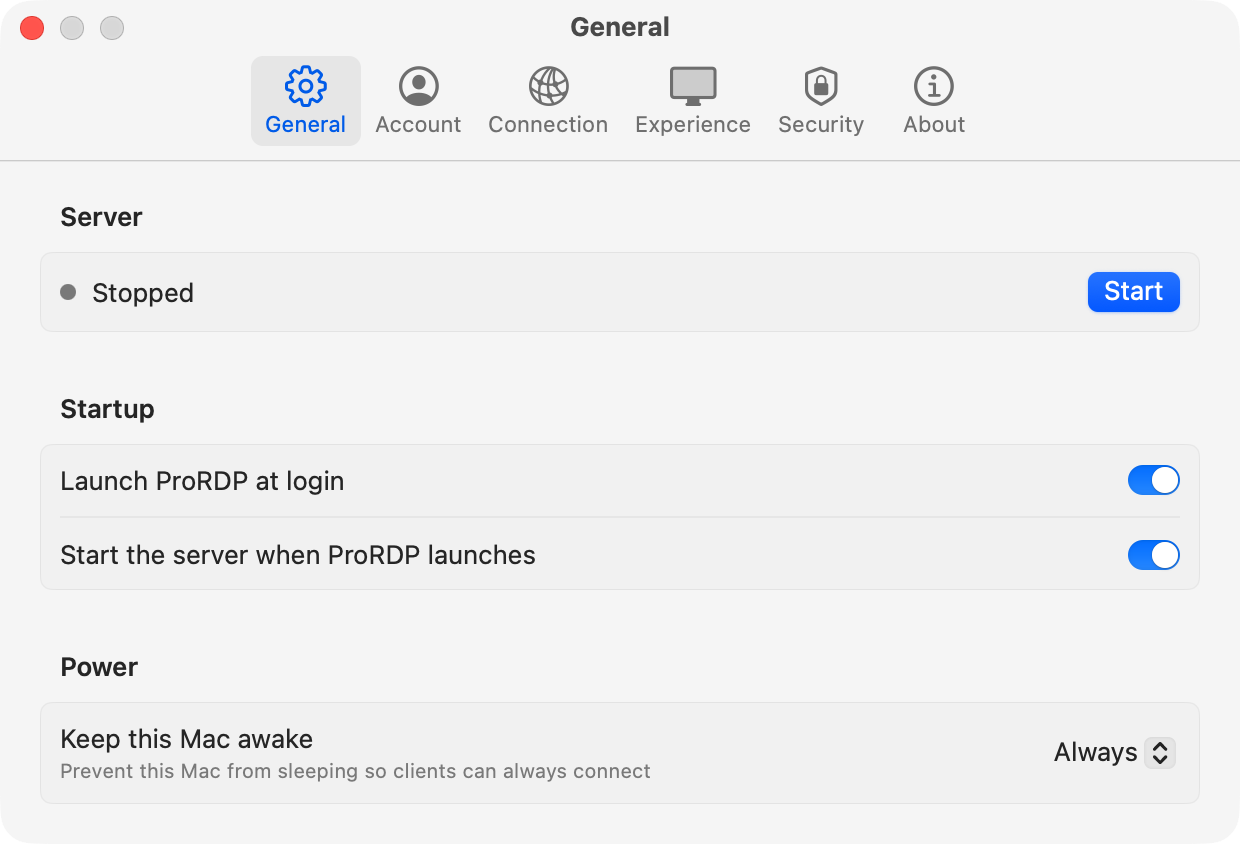
The General pane contains the basics of ProRDP’s configuration, including server status and controls, startup behavior, power management, and the macOS permissions ProRDP depends on.
Permissions
ProRDP needs two macOS privacy permissions. If either one is missing, this section appears at the top of the pane with a Grant button for each. Once both are granted, the section stays hidden.
| Permission | What ProRDP uses it for |
|---|---|
| Screen Recording | Capturing the screen and system audio with ScreenCaptureKit. Required to capture the display and audio. |
| Accessibility | Injecting the client’s keyboard and mouse input into macOS. Required to control the Mac remotely. |
Grant asks macOS for the permission, which adds ProRDP to the list in System Settings. Then it opens the right pane of System Settings › Privacy & Security so you can switch it on. The row turns green within about a second of you granting the permission.
Make sure to quit and reopen ProRDP after granting permissions. macOS applies some grants only when the app next launches.
Server
Shows what the server is doing right now, with the controls to change it.
| Status | Meaning |
|---|---|
| Stopped | The server isn’t listening. Clients can’t connect. |
| Listening on address:port | The server is waiting for connections. The address shown is the one to enter in your Remote Desktop client. You can select and copy it. |
| client connected | A session is active. The client’s machine name is shown. |
| Error | The server couldn’t start or stopped unexpectedly. The reason is shown in red underneath. |
Start runs the server with the current settings. While it runs, Restart and Stop replace it.
Changes to most settings don’t reach a server that’s already running. When you change one, a banner appears at the bottom of every settings pane: “The server is running with the previous settings”, with a Restart Server button. The banner compares what the server started with against what’s saved now, so a change you then undo leaves nothing pending.
Startup
Launch ProRDP at login
Opens ProRDP automatically when you log in to this Mac. ProRDP registers itself as a login item, and you can see and remove it under System Settings › General › Login Items.
Default: Off.
macOS sometimes needs you to approve a new login item. If it does, a note appears under the toggle and the toggle stays off until you approve ProRDP in System Settings. The toggle always shows what macOS actually has registered, not what you last asked for.
Start the server when ProRDP launches
Starts the server as soon as the app opens, so the Mac starts accepting connections with no further clicks. Turn it on together with Launch ProRDP at login for a Mac that’s always reachable after a restart. Turn it off if you’d rather start the server from the menu bar only when you need it.
Default: On.
Power
Keep this Mac awake
A Mac that has gone to sleep drops off the network. An incoming RDP connection can’t wake it, because a sleeping Mac doesn’t answer TCP. This setting decides whether ProRDP stops the Mac from idling into sleep.
| Option | Behavior |
|---|---|
| Always (default) | Prevents idle sleep for as long as the server is running, so clients can always connect. |
| When connected | Prevents idle sleep only while a session is active. Between sessions the Mac follows its normal Energy settings. Once it sleeps, you have to wake it some other way before connecting. |
| Never | Leaves power management alone. The Mac sleeps on its usual schedule, even during a session. |
Whichever option you choose, ProRDP only blocks idle sleep. Choosing Sleep from the Apple menu, or closing a laptop’s lid, still works.
While a client is connected, ProRDP also keeps the displays from sleeping. When every display sleeps, macOS stops drawing the desktop, and a connected session would freeze on its last frame. The Mac returns to its normal behavior the moment ProRDP quits, even if it quits unexpectedly.
Using “When connected”? Turn on Wake for network access in System Settings. Then another device on your network can wake the Mac with a Wake-on-LAN magic packet before you connect.