Experience
Display modes, text scaling, multi-monitor sessions, frame rate and bitrate, and where the Mac's audio plays.
The Experience pane controls what a session looks, feels, and sounds like on the client: how it relates to the Mac’s own screens, how sharp and roomy the desktop is, how much bandwidth video can use, and where audio plays.
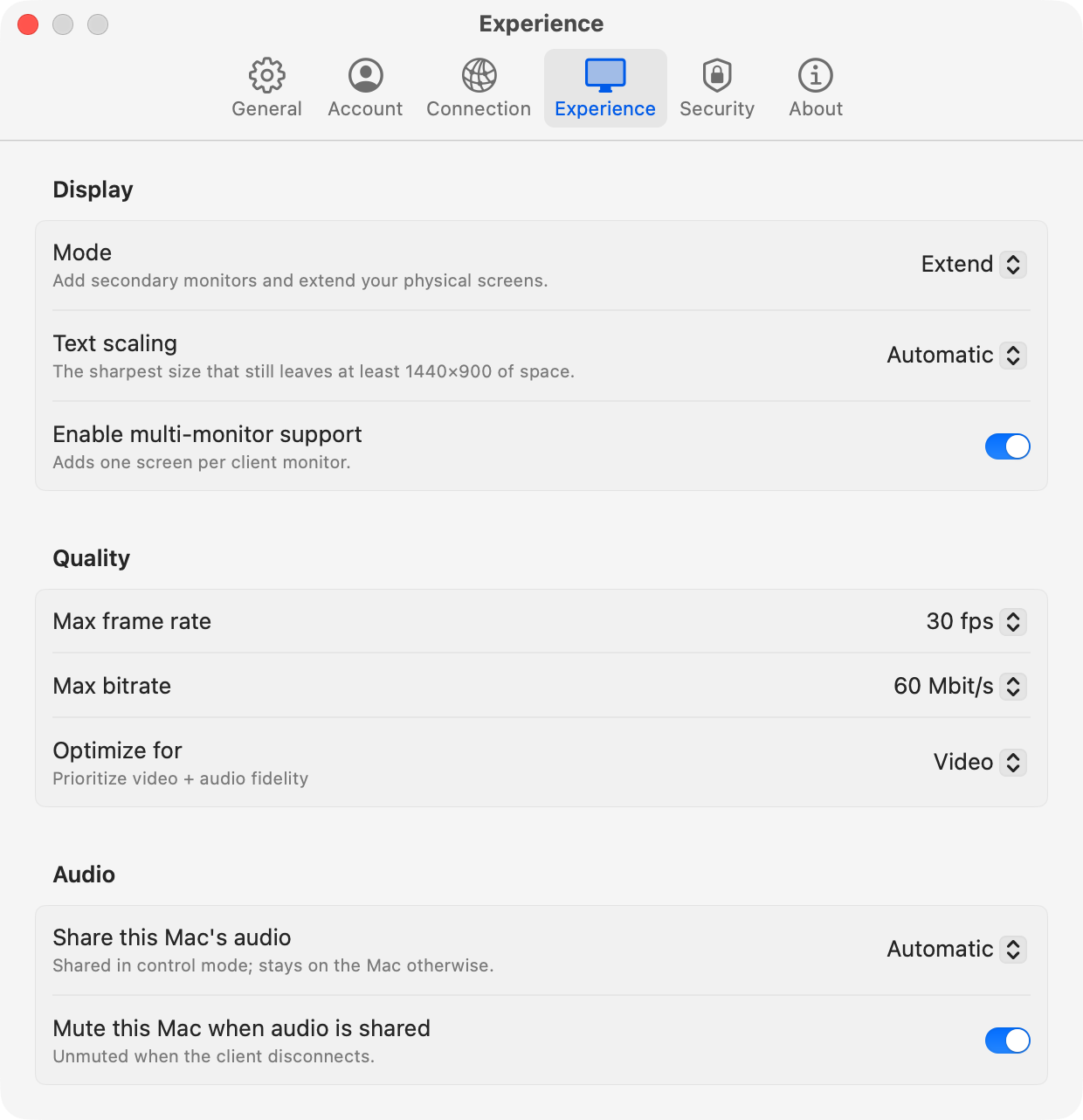
Display
Mode
Decides how a remote session relates to the Mac’s own screens. The right choice depends on whether someone is also using the Mac in person.
| Option | Session runs on | The Mac’s own screens | Client can resize |
|---|---|---|---|
| Mirror | One of the Mac’s physical screens | Unchanged, showing the same thing as the client | No |
| Extend (default) | A virtual display created for the session | Unchanged and independent | Yes |
| Control | A virtual display created for the session | Folded into the session and blacked out | Yes |
Mirror shares an existing screen. Someone at the Mac sees exactly what the client sees, which suits remote assistance or presenting. The session runs at that screen’s native resolution, whatever size the client window is, because a physical display’s resolution isn’t the server’s to change. If the session is larger than the client window, turn on Smart Sizing in the client.
Extend gives the session a desktop of its own at exactly the size the client asks for, next to the Mac’s screens. Someone can keep working at the Mac while you work remotely. Text is drawn at the correct size rather than scaled, and resizing the client window resizes the remote desktop with it. Because this is a separate desktop, an app you open from the session can put its window on a physical screen you can’t see. This happens most often with apps that reopen windows where they last were.
Control works like connecting to a Windows PC. Every physical screen is folded into the session, so every open window is now in front of you, and the Mac’s own panels go black so nobody nearby can see what you’re doing. The client’s picture isn’t affected. The panels come back the moment the client disconnects, and they’re also restored if ProRDP quits or is force-quit. Windows stay where the session left them afterward and don’t jump back to the screens they came from.
Screen
Shown in Mirror mode. Chooses which of the Mac’s screens to share.
Default: Main display. This follows whichever screen macOS treats as main, even after monitors are unplugged or rearranged. You can also pick a specific screen by name.
The session runs at the resolution of the screen you choose. With multi-monitor support on and a client with several monitors, the Mac’s screens are paired to the client’s monitors in order instead.
Text scaling
Shown in Extend and Control modes. Sets how much desktop fits into the pixels the client asks for, and so how large text and interface elements look. It works like the “Larger Text” to “More Space” choices in macOS’s Displays settings.
The client always receives exactly the resolution it asked for. This setting changes only the size of the desktop drawn into those pixels. Fractional scales are rendered at a higher resolution and scaled down on the GPU, the same way macOS handles its own built-in displays. Text stays sharp, and the bandwidth used doesn’t change.
| Option | Scale | Result |
|---|---|---|
| Automatic (default) | Varies | The sharpest scale that still leaves at least 1440×900 points of desktop. |
| Larger Text | 2× | Sharpest, with the least room. Like a Retina Mac’s default. |
| Large Text | 1.75× | Very sharp, with a little more room than Larger Text. |
| Default | 1.5× | A balance of sharpness and room. |
| More Space | 1.25× | More room than Default, with slightly softer text. |
| Most Space | 1× | One pixel per point. The most room, the smallest text, and no extra sharpening. |
1440×900 is the smallest workspace macOS has ever shipped on a Mac. Automatic starts at 2× and works down until the desktop is at least that large in both directions:
| Client resolution | Desktop | Scale |
|---|---|---|
| 3840×2160 (4K) | 1920×1080 | 2× |
| 3024×1964 (14-inch MacBook Pro) | 1512×982 | 2× |
| 2560×1440 | 1712×963 | 1.5× |
| 2304×1536 (Surface Laptop) | 1536×1024 | 1.5× |
| 3440×1440 (ultrawide) | 2279×954 | 1.51× |
| 1920×1080 | 1920×1080 | 1× |
A 1080p client stays at 1×, because any higher scale would leave less desktop than 1440×900.
Enable multi-monitor support
Lets a client with several monitors use all of them. In Windows Remote Desktop, turn on Use all my monitors in the connection settings. Each client monitor then becomes a full-screen display in the session, arranged to match the client’s own layout, so dragging a window right on the client moves it to the client’s right-hand screen.
Default: On. Up to four monitors are served.
What fills each monitor depends on the mode:
| Mode | What each client monitor shows |
|---|---|
| Mirror | One of the Mac’s screens, in arrangement order, scaled to fit. Extra Mac screens aren’t shown, and a client monitor with no Mac screen to show stays black. |
| Extend | A new virtual display per monitor, alongside the Mac’s own screens. |
| Control | A new virtual display per monitor. The Mac’s screens are spread across them and blacked out. |
With the setting off, the client always gets a single desktop, even when it has several monitors.
A few limits apply:
- The number of monitors can’t change during a session. You can resize monitors, but adding or removing one requires reconnecting.
- Video encoding is the limit. Three 1080p monitors fit comfortably at 30 fps on Apple silicon. Two 4K monitors don’t, and the session lowers its frame rate rather than dropping a monitor.
- Some things exist once per session and belong to the primary monitor: audio, the mouse pointer, and the performance readout. Recordings write one file per monitor.
Quality
ProRDP encodes the screen as H.264 video using the Mac’s hardware encoder. The encoder only sends the parts of the screen that change, so an idle desktop uses almost no bandwidth, whatever these limits are set to.
Max frame rate
The most frames per second the session sends while the screen is changing.
| Option | Suited to |
|---|---|
| 24 fps | Slow or metered links. |
| 30 fps (default) | General desktop work, and most links. |
| 60 fps | Fast local networks, smooth scrolling, animation, and video. It needs twice the encoding work and more bandwidth than 30 fps. |
Default: 30 fps.
Max bitrate
The most bandwidth the video stream uses while the screen is busy. Higher bitrates keep fine detail and text crisp during motion. Lower bitrates leave room on a shared or slower link.
Options: 20, 40, 60 (default), 80, or 120 Mbit/s.
Default: 60 Mbit/s.
Set this at or below what the network between client and Mac can actually carry. If the bitrate asks for more than the link can deliver, video backs up. Optimize for then decides what gives way first.
Optimize for
Decides what the session protects when the network can’t keep up. Audio and video share a single connection, so audio can’t overtake video that’s already queued. Any backlog of video delays the sound by the same amount. This setting caps that backlog.
| Option | Video backlog allowed | Trade-off |
|---|---|---|
| Video (default) | 400 ms | Prioritizes a smooth picture. Bursts of motion get through without dropped frames, but audio can fall behind the picture on a link that can’t keep up. Best for watching video. |
| Productivity | 80 ms | Prioritizes responsiveness. When the link fills, frames are dropped instead of queued. The picture thins under load, but audio stays in sync and keystrokes aren’t stuck behind queued video. Best for interactive work, calls, and editing. |
Default: Video.
Neither option lowers quality on a link that’s keeping up. On a fast wired network, both behave the same.
Audio
Audio travels from the Mac to the client as uncompressed 16-bit stereo PCM at 44.1 or 48 kHz, which uses about 1.4 Mbit/s. Sound only travels from the Mac to the client; sending the client’s microphone to the Mac isn’t supported.
Share this Mac’s audio
Decides whether the Mac’s sound plays on the client or stays on the Mac.
| Option | Behavior |
|---|---|
| Automatic (default) | Sent to the client in Control mode, and kept on the Mac in Mirror and Extend. Audio follows the desktop: in Control mode the Mac has been taken over, and in the other modes someone may still be using it. |
| Always | Always sent to the client, in every display mode. |
| Never | Always kept on the Mac. The client isn’t offered an audio channel at all. |
Default: Automatic.
For audio to play, the client must be set to play sound on this computer. In Windows Remote Desktop, that’s under Local Resources › Remote audio.
Mute this Mac when audio is shared
Shown unless Share this Mac’s audio is set to Never. Silences the Mac’s own speakers while its audio is being sent to the client.
Default: On.
macOS copies the audio for the client without stopping it playing on the Mac. Without this setting, the sound would play in both places, including on a Mac in Control mode with its screens blacked out. The Mac’s sound comes back when the client disconnects, and also if ProRDP quits unexpectedly. ProRDP uses the output’s mute control where it has one, so a volume change made during the session is kept. An output with no mute control has its volume turned down to zero and then restored.