Connection
The listening port, UDP transport, Network Level Authentication, clipboard and file sharing, and keyboard mapping.
The Connection pane controls how clients reach the Mac and what crosses the connection once they’re in: network transport, authentication, clipboard contents, and keyboard shortcuts.
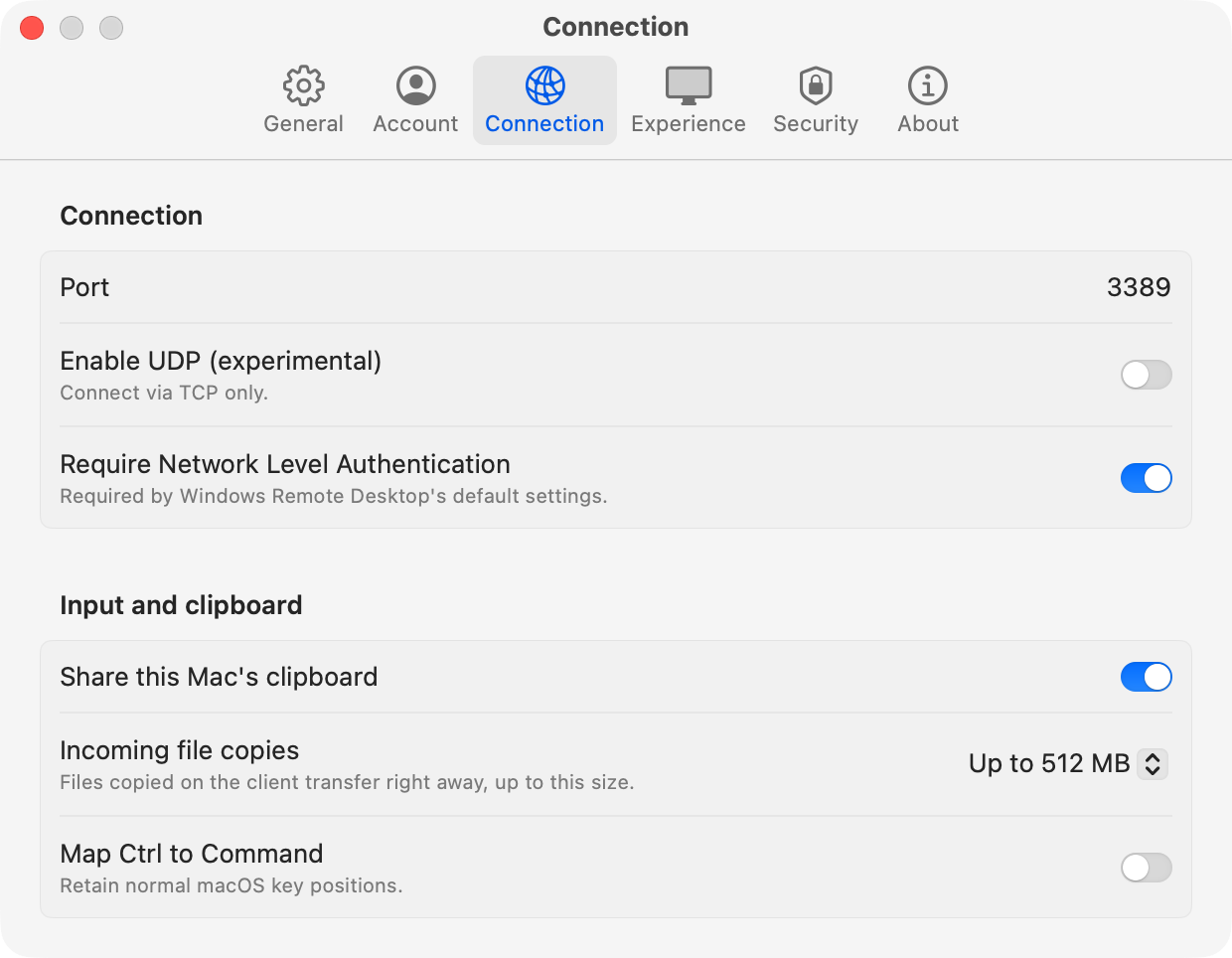
Connection
Port
The port the server listens on. If UDP is enabled, it uses the same port number.
Default: 3389, the standard RDP port. Remote Desktop clients connect to it when no port is given.
Any whole number from 1 to 65535 is accepted. If you type something else, the field goes back to
the saved port when you press Return. To connect on a non-standard port, add it to the address in
your client, for example mac-mini.local:3390.
Change the port if another service already uses 3389, or to keep automated scans of the standard port off the Mac. Whatever port you choose, a firewall or router in the way has to allow it.
Enable UDP (experimental)
RDP can carry a session over a TCP connection alone, or add a UDP side channel. On a link with latency or occasional packet loss, UDP avoids the stalls TCP causes while it waits to resend lost data.
| State | Behavior |
|---|---|
| Off (default) | TCP only. The server tells clients up front that no UDP channel is available, so they don’t wait for one. This is the most compatible option with strict firewalls. |
| On | The server offers a UDP transport alongside TCP. Clients use it while the link is healthy and fall back to TCP when it isn’t, retrying UDP later. |
Default: Off.
This option is experimental. UDP sessions have been verified with Windows Remote Desktop, but TCP remains the default until UDP has had more real-world use. If you turn it on, allow UDP as well as TCP on the port through any firewall.
Require Network Level Authentication
Network Level Authentication (NLA) makes the client prove its credentials, using CredSSP, before the server creates a session. Without NLA, the connection is protected by TLS, and the client signs in partway through setting up the session.
| State | Behavior |
|---|---|
| On (default) | Clients must authenticate with NLA. This matches Windows Remote Desktop’s default settings, so clients connect without changes. |
| Off | The server accepts TLS-only connections. Windows clients need enablecredsspsupport:i:0 in their .rdp file, and they show a security warning on each connection. |
Default: On. Leave it on unless a specific client can’t do NLA.
NLA needs a credential ProRDP can check before the client sends its password. A ProRDP account always has one. A macOS account has one only if Store password NT hash is on. If it isn’t, the server offers TLS whatever this toggle says, and the caption warns in orange: “Inactive: the account’s password hash isn’t stored.”
Input and clipboard
Share this Mac’s clipboard
Lets copy and paste work in both directions between the Mac and the client, using the standard RDP clipboard channel, which every mainstream client supports.
Default: On.
| Content | On the Mac | On Windows |
|---|---|---|
| Plain text | Plain text (UTF-8) | Unicode text |
| Styled text | RTF | Rich Text Format |
| Web content | HTML | HTML Format |
| Images | TIFF, PNG | Device-independent bitmap |
| Files and folders | File URLs | File list and contents, controlled by Incoming file copies |
Line endings, text encodings, and image formats are converted automatically, so a multi-line paste keeps its lines and images keep their colors. Folders keep their structure in both directions.
A copy on the Mac costs nothing until someone pastes on the client, and then the data is sent. A copy on the client is fetched right away, because macOS can’t wait for data at the moment of pasting without blocking the app you’re pasting into. A single clipboard item other than files is limited to 32 MB.
Turn this off to stop any clipboard content crossing the connection in either direction.
Incoming file copies
Sets how much file data one copy on the client can transfer to the Mac. It’s available only while Share this Mac’s clipboard is on.
| Option | Behavior |
|---|---|
| Do not share files | No files cross in either direction. None are offered to the client, and none are fetched from it. Text and images are still shared. |
| Up to 64 MB, 256 MB, 512 MB (default), 1 GB, or 4 GB | Files cross in both directions. Files copied on the client transfer to the Mac right away, as long as their total size is within the limit. |
Default: Up to 512 MB.
The limit exists because of when the transfer happens. Files copied on the client transfer as soon as they’re copied, before anyone pastes. So even a copy in Windows Explorer that was only meant to move a file within Windows costs the full transfer. A copy over the limit isn’t fetched at all, and the Mac’s clipboard stays as it was. The limit is enforced by the server, not merely advertised, so a client can’t get around it by asking anyway.
What to expect while a large file moves:
- Copying on the client: the Mac’s clipboard keeps its previous contents until the whole transfer lands, and then the files appear all at once. There’s no progress indicator on the Mac. The session stays responsive, but the transfer shares bandwidth with the screen.
- Copying on the Mac: nothing moves until you paste on the client. Windows then shows its usual copy dialog, with progress and a cancel button.
Incoming files are stored in a temporary folder and put on the Mac’s clipboard from there. A transfer that fails partway is discarded, so you never paste half a file. File names from the client are sanitized, and any name that would write outside that folder is refused.
Map Ctrl to Command
Chooses how the modifier keys on a Windows keyboard reach macOS.
| State | Behavior |
|---|---|
| Off (default) | Positional. Keys keep their physical positions: Alt acts as Option, and the Windows key acts as Command. Your Mac muscle memory works, but Windows shortcuts don’t. Ctrl+C arrives as Control+C, which macOS doesn’t treat as Copy. |
| On | Shortcuts. Ctrl and the Windows key swap roles: Ctrl acts as Command, and the Windows key acts as Control. Ctrl+C, Ctrl+V, Ctrl+Z, and other Windows shortcuts work as written. Alt still acts as Option. |
Default: Off.
Turn this on if you mostly use a Windows PC and want its shortcuts to work on the Mac without thinking about them.