Account
Choose who can sign in over Remote Desktop: a dedicated ProRDP account, or an existing macOS user account.
The Account pane sets the one username and password a Remote Desktop client must present to connect. ProRDP gives you two kinds of account, and each has a real security trade-off.
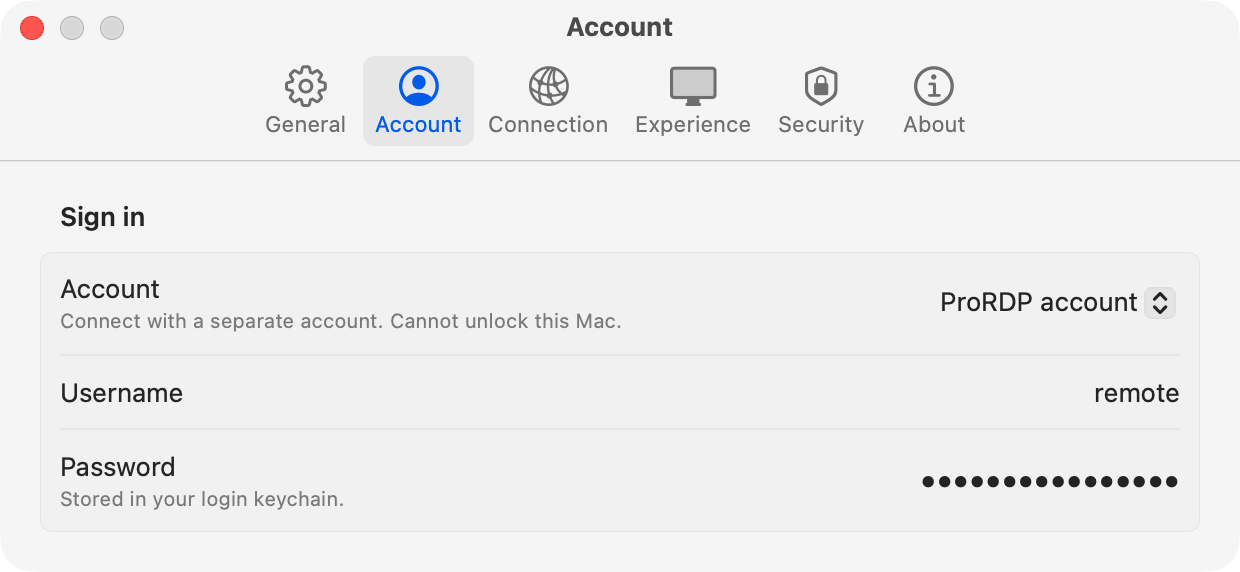
Sign in
Account type
The Account picker chooses how clients authenticate. The rest of the section changes to match.
| Option | Credentials | What ProRDP stores | Can unlock this Mac? |
|---|---|---|---|
| ProRDP account (default) | A username and password used only for remote sessions | The password, in your login keychain | No |
| macOS account | An existing local macOS user’s own username and password | The password’s NT hash, or nothing at all | The password can. The stored hash can’t. |
Choose a ProRDP account when you want remote access to have its own credential. If the password leaks, the only thing exposed is access to this server. It can’t be used to log in at the Mac, unlock the login keychain, or unlock FileVault.
Choose a macOS account when you want one password to remember, and you want macOS to have a say in every login. With this option, a disabled, locked, or deleted account can’t connect even if its credentials were correct when you set them up.
Only the single account you configure can sign in. There’s no mode that lets any local user connect. Network accounts from a directory server aren’t offered, so the server keeps working when the directory can’t be reached.
ProRDP account
Username
The name clients enter when they connect. It doesn’t have to match any account on the Mac.
Default: Your macOS short name.
Password
The password clients enter when they connect. It’s saved in your login keychain as you type.
Default: None. The server refuses to start until you set one, rather than accepting anyone who can reach the port. Until then, the caption under the field reads “Required to start the server.”
macOS account
macOS account
The local macOS user that clients sign in as. The list shows the user accounts on this Mac.
Default: The user who is logged in and running ProRDP.
Store password NT hash
Full label: Store password NT hash (required for Network Level Authentication).
Network Level Authentication (NLA) authenticates the client before a session is created, using the NTLMv2 protocol. NTLMv2 needs the password’s NT hash before the client reveals the password itself. macOS doesn’t keep an NT hash for local accounts; it stores only PBKDF2 and SRP verifiers, which can’t be turned into one. So for NLA to work with a macOS account, ProRDP has to keep the NT hash itself.
| State | What happens |
|---|---|
| On (default) | You enter the account’s password once. ProRDP checks it with macOS, stores only its NT hash in your login keychain, and throws the password away. Clients use NLA. On each connection, the credentials the client delegates are checked with macOS again. |
| Off | Nothing is stored. macOS checks the password on every connection, and a password change takes effect immediately. NLA isn’t possible, so the server offers TLS only. |
What the stored hash can and can’t do. For NTLM against this server, an NT hash works like the password. It can’t unlock the Mac, the login keychain, or FileVault, though, so storing it exposes far less than storing the password would.
With the hash turned off, clients need a change. By default, Windows Remote Desktop requires
NLA and refuses to connect without it. Add this line to the client’s .rdp file:
enablecredsspsupport:i:0
With NLA off, the client shows a warning each time it connects, and a client that hasn’t authenticated gets further into the connection before it’s turned away.
macOS account password
Shown when Store password NT hash is on. Type the account’s current macOS password, then press Return or click Check with macOS and save.
ProRDP stores the hash only after macOS confirms the password. A typo can’t become a working remote password this way. If macOS rejects what you typed, the reason is shown in orange and nothing is saved. Once a hash is stored, the field shows dots as a placeholder. The password itself is never kept, so it can’t be shown again.
Changed your macOS password? Enter the new one here. The stored hash still matches the old password, so clients using the new one are told their credentials are wrong. ProRDP can’t detect the change in advance, because that would mean keeping the password itself.