Announcing ProRDP v1 Beta 6 - Commercial Licensing and More
ProRDP v1 Beta 6 adds commercial licensing, Entra ID sign-in, tamper-proof audit and recording settings, Control mode by default, and mouse side buttons. It's the last beta before v1 later this month.
Thank you
When I released the first beta of ProRDP about a month ago, I figured a handful of people who were as frustrated with macOS remote access as I was might give it a try. The response has been more than I ever expected. You’ve sent bug reports, feature requests, ideas, and plenty of kind words, and every one of them has made ProRDP better.
I’m excited to tackle every feature request and feedback item I can, with one goal in mind: making ProRDP the best remote desktop solution for macOS. So please keep them coming, and upvote the requests you’d most like to see in the issue tracker. It really does help me decide what to work on next.
Today I’m releasing ProRDP v1 Beta 6. It’s the last beta before the full v1 release, which is coming later this month. I’ve spent the past few weeks getting commercial licenses up and running, and I wanted to ship one more beta with that in place before calling anything 1.0. Here’s what’s in it.
Commercial licensing for businesses
You can now use ProRDP at work with a paid commercial license. There are monthly and yearly plans, and billing runs through Stripe. You can learn more and purchase a commercial license on the new ProRDP portal. Both user-initiated and MDM-managed deployments are supported, allowing organizations to deploy and manage ProRDP across their teams efficiently. I’ve also added RBAC and team management features to make it easier to control access and permissions within your organization.
Nothing changes if you use ProRDP at home. It’s still free for home and personal use, with no license key, no account, and no local or performance features held back. As I said when I first announced ProRDP, commercial licenses don’t exist to take things away from the free version. They exist to fund the project and to add things businesses need, like the Entra ID sign-in below.
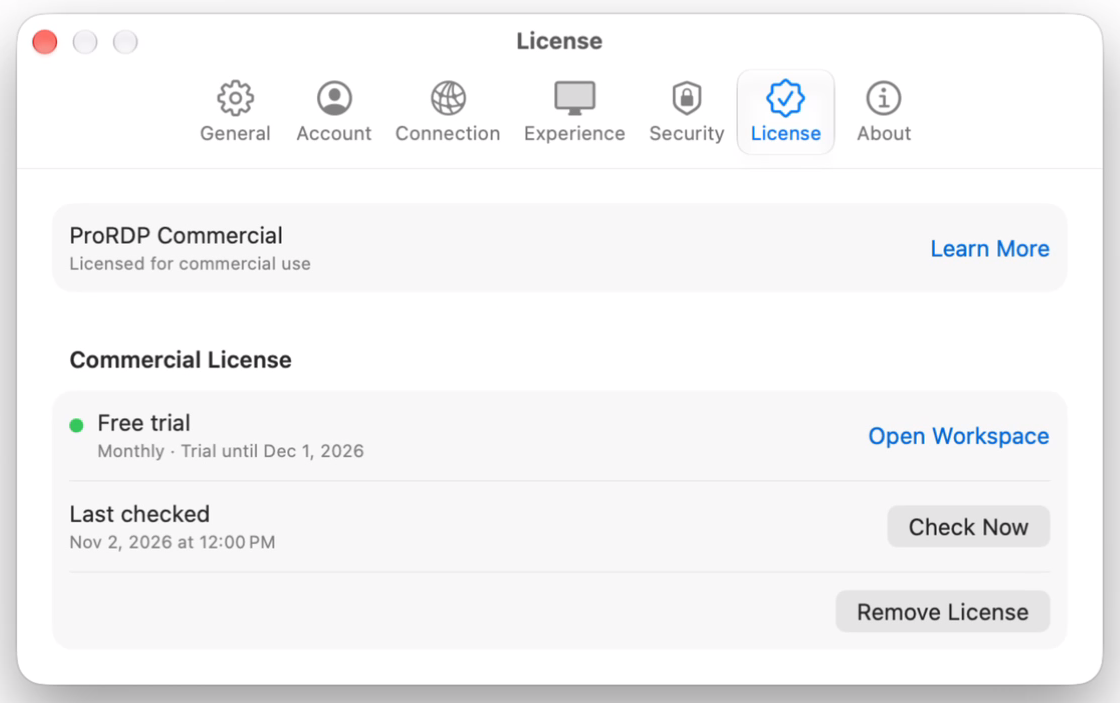
If you’re not sure which one applies to you, the Licensing docs explain the difference between personal and commercial use.
Connect to your Mac with Entra ID
If your organization runs on Microsoft Entra ID, you can now sign in to ProRDP with your Entra ID account. This is the first of the business features I mentioned back in September.
Entra ID sits alongside the existing ProRDP and macOS account options described in the Account settings docs, allowing you to choose the sign-in method that works best for your organization. For now Entra ID sign-in is tied to a specific user account within your organization. I’m planning to add support for multi-user and shared device scenarios in a future update.
I’m also planning to do a technical write-up very soon on how Entra ID integration works under the hood. When I started on this feature a few weeks back I was hoping to re-use the Windows approach to Entra ID sign-in, which requires an authentication on the client, followed by a connection to the server with the obtained token. However, as I’ll describe in the write-up, macOS devices aren’t treated the same in Entra ID and Intune, meaning there’s no way to replicate the exact same flow on a Mac. The good part of this though is that my approach also opens the door to Okta and other identity providers in the future. (stay tuned)
Audit and recording settings are locked during a session
ProRDP can keep an audit trail of every connection and sign-in, and record each session to a video file. Both are only useful if the person being audited can’t switch them off.
Starting with Beta 6, the audit log and screen recording settings can’t be changed while a remote session is active. Someone connected remotely can’t turn them off, or point them somewhere else, to hide what they’re doing. To change them, make the change when nobody is connected.
Control mode is now the default
ProRDP has three display modes: Mirror, Extend, and Control. New installs now start in Control mode.
Control mode works the way connecting to a Windows PC does. Every one of the Mac’s screens is folded into your session, so all of your open windows are right in front of you, and the Mac’s own displays go black so nobody nearby can see what you’re doing. When you disconnect, the displays come back on.
For most people connecting to their own Mac from somewhere else, that’s exactly what they expect, and it was the mode I kept switching to myself. If someone is also using the Mac in person, Extend and Mirror are still a click away in Settings › Experience.
Mouse side buttons now supported
If your mouse has back and forward buttons on the side, ProRDP now forwards them to the Mac. That means buttons 4 and 5 go back and forward in Chrome, Finder, and any other app that supports them, just like they would with the mouse plugged directly in. Thank you to the community member who requested this feature!
Terms of use on first launch
The first time you open ProRDP, it now asks you to read and accept the Terms of Use. You only see this once. ProRDP won’t ask again unless the terms change.
Note: If you’re upgrading from Beta 5 to Beta 6, the terms of use screen currently prevents the server from starting until you accept the new terms. I’ve added a fix for the upcoming v1 release that will allow the server to start even if the terms haven’t been accepted yet, allowing a remote-initated upgrade to reconnect successfully.
How to install Beta 6
If you’re already running Beta 5, switch your update channel to Beta in Settings › General, and ProRDP will update itself. See Updates for how updates are checked, signed, and installed.
Note: Before updating from Beta 5 to Beta 6, make sure you have physical access to your Mac, as you’ll need to accept the new terms of use on first launch. A fix will be included in the upcoming v1 release to allow the server to start even if the terms haven’t been accepted yet, enabling smoother remote upgrades.
If you’re new to ProRDP, download ProRDP-1.0.0-beta.6.dmg from the release page, open it, and drag ProRDP to your Applications folder. Then follow Getting Started to grant permissions and connect for the first time.
What’s coming next
- ProRDP v1.0.0. I’m hoping to release it later this month, once I’ve confirmed the new commercial licenses work as expected out in the real world.
- Homebrew. Beta 6 includes the groundwork for a Homebrew cask, and I expect to have it up and running in the next few days as part of the v1 release. Then you’ll be able to install and update ProRDP from the terminal like the rest of your tools.
- Webcam support. I’m working through the entitlements and virtual camera support in macOS, so you’ll be able to use your local webcam in a remote session.
- Microphone support. You’ll soon be able to use your local microphone in a remote session.
- FIDO2 and WebAuthn passkeys. You’ll soon be able to use your passkeys and security keys inside a session. For now, passkeys is limited to just Entra ID sign-ins.
- Improved mouse & keyboard support. v1 will include better slow-path handling for both mouse and keyboard input, improving reliability and responsiveness in remote sessions.
- Azure Marketplace integration. ProRDP will soon be available on the Azure Marketplace, making it easier for organizations to deploy and manage their ProRDP instances at scale.
If there’s something else you’d like to see, or something isn’t working the way you expect, please open an issue or email hello@prordp.app. Thanks again for all the support. I can’t wait to get v1 into your hands.
- Aaron