How to Remote Into a Headless Mac (No Monitor or Dummy Plug Needed)
Running a Mac mini or Mac Studio without a monitor for AI, a homelab, or CI/CD builds? Here's how to remote into a headless Mac with RDP, why VNC struggles without a display, and why you no longer need an HDMI dummy plug.
Macs aren’t just laptops and desktops anymore. More and more of them are sitting in closets, on shelves, and in racks with no monitor, keyboard, or mouse attached. These are headless Macs, and if you run one, sooner or later you need to see its screen.
Why run a headless Mac?
Apple silicon made Macs surprisingly good servers. They’re small, quiet, and power-efficient, and the unified memory on a Mac Studio or Mac mini goes a long way for some workloads. A few of the most common reasons people run them headless:
- AI and local LLMs. A Mac with lots of unified memory can run large language models locally that would need multiple expensive GPUs on a PC. Plenty of people now keep a Mac Studio or a stack of Mac minis running inference around the clock.
- Homelabs and home servers. A Mac mini makes a great always-on box for media servers, home automation, backups, file sharing, or just tinkering.
- CI/CD and build machines. If you build apps for Apple platforms, you need macOS and Xcode to do it. Teams run headless Macs as build agents and self-hosted runners for their pipelines.
- Remote workstations. Some people keep a powerful Mac at home or in the office and use it from a laptop wherever they are.
Do you need a monitor for a headless Mac?
Most of the time, these Macs just run. But every so often you need to actually see the desktop: to approve a macOS permission prompt, sign in to an app, check on a stuck build, install an update, or change a setting that only exists in a GUI.
You could plug in a monitor, keyboard, and mouse each time. That’s fine for one Mac under your desk. It’s a lot less fine for a Mac on a shelf in the closet, a rack of build machines, or a Mac in another building. What you really want is to sit at the computer you’re already using and open the headless Mac’s desktop in a window.
That’s what remote desktop is for, and on a Mac there are two main options: VNC and RDP.
Can you use Mac Screen Sharing on a headless Mac?
Not without some major limitations. macOS includes Screen Sharing, which you turn on under System Settings › General › Sharing. It’s built on VNC, and it works with Apple’s Screen Sharing app on other Macs and with third-party VNC clients elsewhere.
But VNC has some real limits, and a headless Mac makes them more obvious:
- It’s slow when things move. VNC sends changed rectangles of pixels instead of hardware-encoded video, so dragging windows, scrolling, and anything animated lags and stutters.
- It can only show a screen that exists. VNC mirrors the Mac’s display. With no monitor plugged in, macOS decides on its own what that display looks like, which often means a low or awkward resolution you can’t easily change from the client.
- No audio, and a basic clipboard. The standard protocol has no sound, and copy and paste is limited to plain text.
Here’s what dragging a window over Screen Sharing looks like:
I go deeper into why in RDP vs. VNC and The Best VNC Clients for Mac Screen Sharing.
Why do people use HDMI dummy plugs on headless Macs?
If you’ve run a headless Mac before, you’ve probably come across HDMI dummy plugs (also called headless display adapters or display/EDID emulators). They’re small dongles that plug into the Mac’s HDMI or USB-C port and pretend to be a monitor.
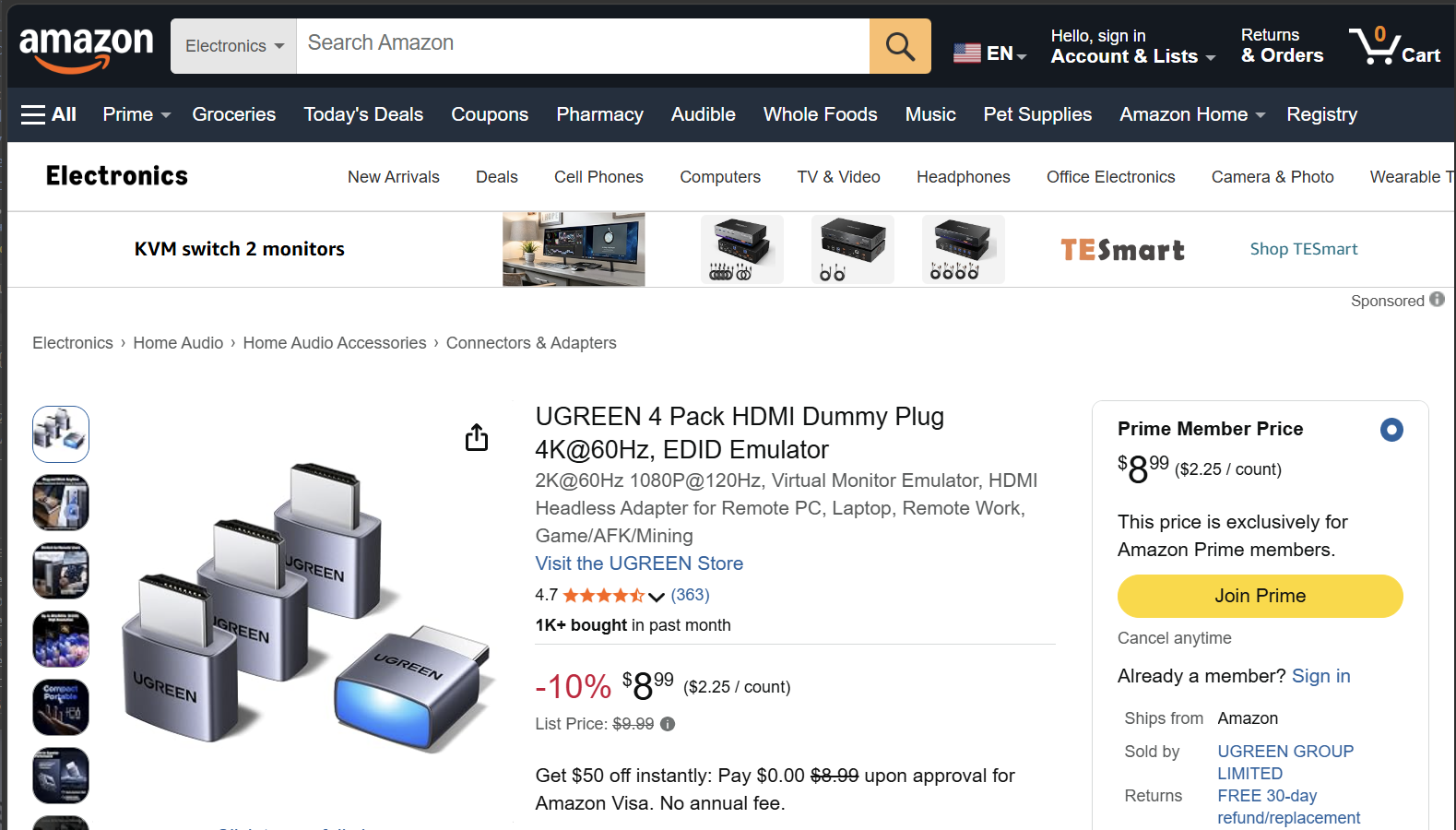
They exist because of the VNC problem above. When a Mac has no display connected, it may fall back to a low resolution, and some apps behave as if there’s no screen at all. A dummy plug tricks macOS into thinking a real monitor is attached, so the desktop renders at a usable resolution and Screen Sharing has something proper to show.
They work, but they’re a hack. You’re stuck with whatever resolutions the plug advertises, which rarely matches the window you’re actually viewing it in. It’s one more piece of hardware to buy for every Mac. And it’s a fixed, physical answer to what’s really a software problem.
Is RDP better than VNC for a headless Mac?
Yes, and the headless case is where the difference matters most. RDP, the Remote Desktop Protocol, is what Windows uses for Remote Desktop. Instead of sending pixel rectangles, modern RDP streams the screen as H.264 video encoded by the Mac’s own video hardware, and it carries audio, the clipboard, and files over the same connection.
macOS doesn’t include an RDP server, so I built ProRDP to fill that gap. It’s a native RDP server for macOS, and it does a few things that make it a particularly good fit for headless Macs.
You don’t need a dummy plug with ProRDP
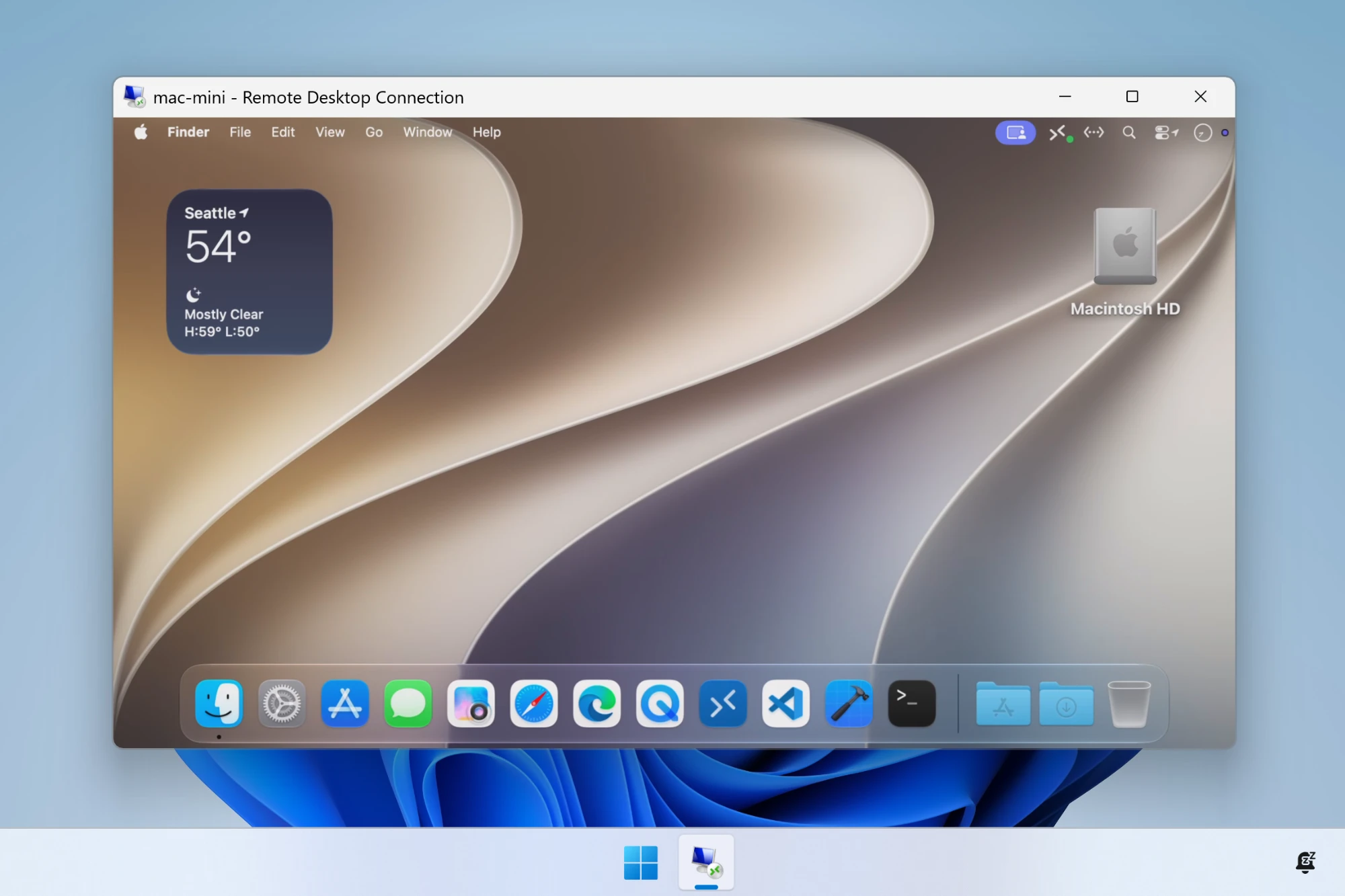
This is the big one. ProRDP creates a virtual display for each remote session, sized to exactly match your client window. It doesn’t need a physical monitor at all, so it doesn’t need a fake one either.
Connect from a 4K monitor and the session is 4K. Connect from a 13-inch laptop and it fits the laptop. Resize the window, and the remote desktop resizes with it. Connect from a PC with several monitors and you can get a virtual display for each one. No dummy plug can do that.
It’s smooth, even at high resolutions
Because the screen is encoded as H.264 by the Mac’s hardware video encoder, the work of streaming the desktop barely touches the CPU. That matters on a machine that’s busy running a model or a build. Here’s the same window drag from earlier, over ProRDP:
Any RDP client can connect
There’s nothing to install on the machine you connect from. Windows has Remote Desktop Connection built in, Macs can use Microsoft’s free Windows App, and Linux has FreeRDP. If you manage a fleet of headless Macs from a Windows PC, they’ll show up just like any other Remote Desktop machine.
How to remote into a headless Mac with ProRDP
You’ll need to see the Mac’s screen once to install ProRDP and grant its permissions. Either plug in a monitor temporarily, or turn on Screen Sharing and do this part over VNC from another Mac. After that, you won’t need either.
1. Install ProRDP and grant permissions
- Download ProRDP, open the DMG, and drag ProRDP to Applications.
- Open ProRDP and grant the two permissions it asks for: Screen Recording and Accessibility.
- Quit and reopen ProRDP so macOS applies the permissions.
2. Set a username and password
In the Account pane, set the username and password your RDP client will sign in with. The default ProRDP account is a separate credential just for remote sessions, so it can’t be used to unlock the Mac itself if it ever leaks.
3. Set it up to run unattended
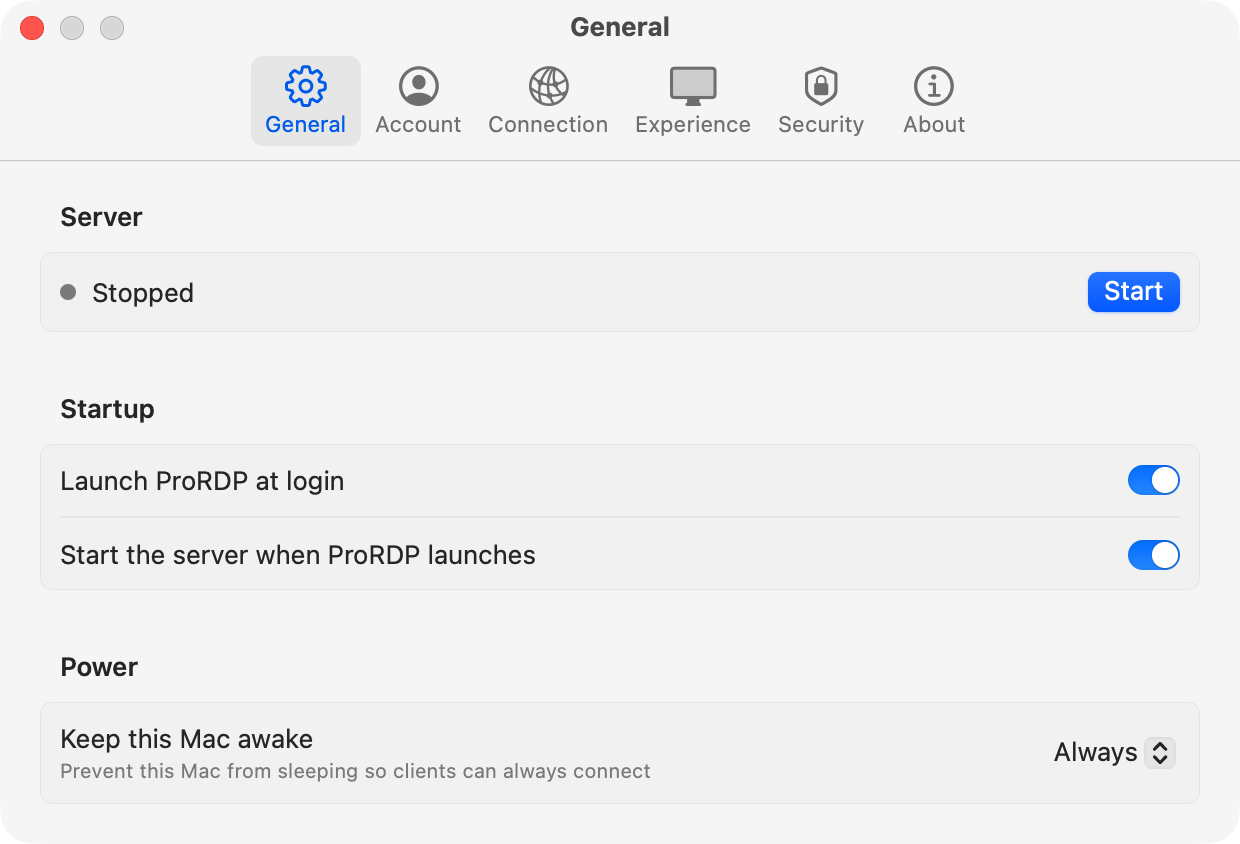
This is the part that’s specific to headless Macs. In the General pane:
- Turn on Launch ProRDP at login and Start the server when ProRDP launches, so the server comes back by itself after a restart.
- Leave Keep this Mac awake set to Always. A sleeping Mac drops off the network, and an RDP connection can’t wake it.
ProRDP runs inside a logged-in user’s session, so the Mac needs to be signed in for it to start. If the Mac might restart while nobody’s around, for updates or after a power cut, look at these macOS settings too:
- Automatic login for the user that runs ProRDP, under System Settings › Users & Groups. macOS only offers this when FileVault is off, so weigh that trade-off for your situation.
- Start up automatically after a power failure, under System Settings › Energy on desktop Macs, so a power cut doesn’t leave the Mac switched off.
Then click Start. The General pane shows Listening on followed by the address to connect to.
4. Connect from any machine on your network
On the computer you’re connecting from, open your RDP client, add the Mac’s address or hostname (like mac-mini.local), and sign in with the username and password from step 2. The first time, accept the certificate prompt; ProRDP uses a self-signed certificate by default.
At this point you can unplug the temporary monitor, or turn Screen Sharing back off. For client-specific steps on Windows, another Mac, and Linux, see How to RDP into a Mac.
To reach the Mac from outside your network, connect through a VPN first. Don’t forward the RDP port to the internet.
Is ProRDP free for headless Macs?
For home and personal use, yes: on as many Macs as you like, with no account and no limits on performance or features. That covers most homelabs and personal AI rigs. Commercial licenses for businesses and teams are on the way, so if your headless Macs are build machines at work, get in touch and I’ll let you know when they’re available.
Update, November 2026: Commercial licenses are now available. See Pricing for plans and how to buy one.