The Best VNC Clients for Mac Screen Sharing (and a Faster Alternative)
Mac Screen Sharing runs on VNC, which brings real limits on speed, resolution, and audio. Here are the best VNC clients for connecting to a Mac, and why switching to RDP is the bigger upgrade.
If you want to control your Mac from another computer, the first thing most people find is Screen Sharing. It’s built into macOS, it’s free, and you don’t need to install anything on the Mac. The catch is the protocol underneath it, and which client you connect with on the other side.
This post covers what Mac Screen Sharing is, the best VNC clients for connecting to it, and then the bigger question: whether you should be using VNC at all.
What is Mac Screen Sharing?
Screen Sharing is macOS’s built-in remote access feature. You turn it on under System Settings › General › Sharing › Screen Sharing, and from then on, another device can see and control your Mac’s screen over the network.
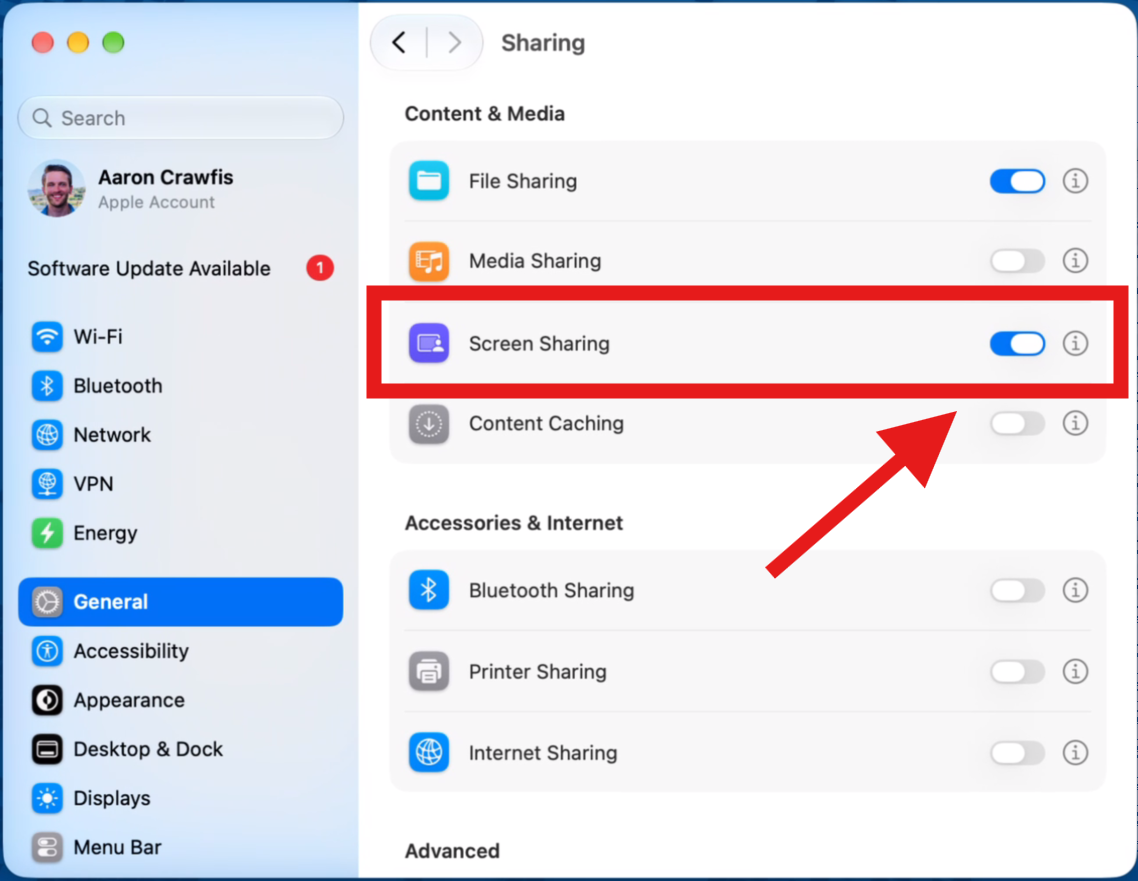
Under the hood, Screen Sharing is a VNC server. VNC (Virtual Network Computing) is a remote desktop protocol from the late 1990s that works by sending pictures of the screen to the client. Apple’s built-in Screen Sharing app on other Macs connects to it, and so can third-party VNC clients on Windows, Linux, and mobile devices.
Is Mac Screen Sharing the same as VNC?
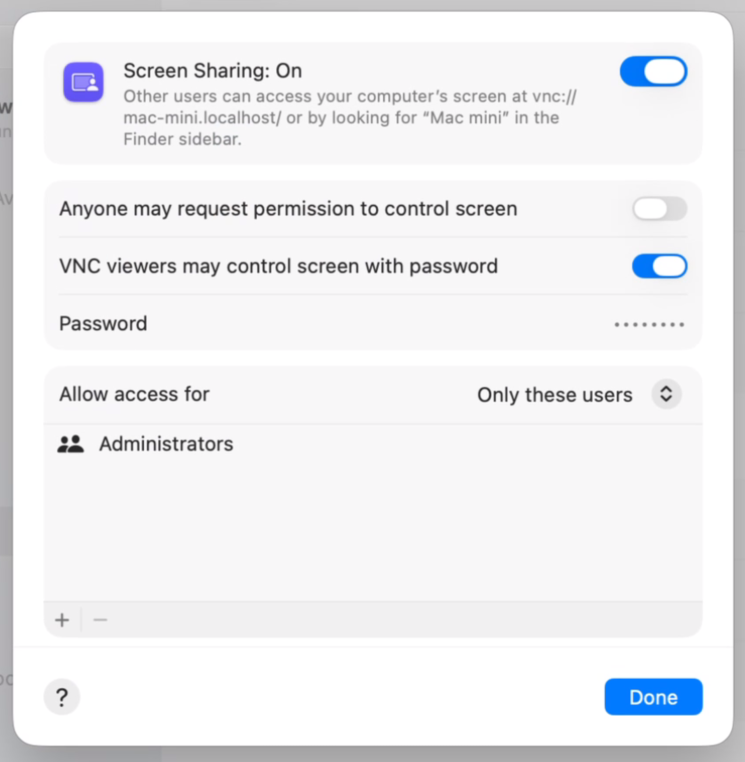
Yes, with some Apple-specific additions. Screen Sharing speaks the standard VNC protocol, but Apple added its own sign-in method and extensions on top. Some third-party VNC clients only support the classic VNC password, so to use them you’ll need to click the (i) next to Screen Sharing in System Settings and turn on VNC viewers may control screen with password. Keep in mind that this older sign-in method only uses the first 8 characters of the password.
What are the limitations of Mac Screen Sharing?
Because it’s VNC, Screen Sharing inherits VNC’s limitations:
- It’s slow when things move. VNC sends changed rectangles of pixels rather than hardware-encoded video, so dragging windows, scrolling, and video playback lag and stutter.
- The resolution is fixed. You see the Mac’s screen at the Mac’s own resolution, whatever size your client window is.
- No audio in the standard protocol, and only basic text clipboard support.
- Compatibility varies from one VNC client to the next, especially with Apple’s sign-in and extensions.
A better VNC client can smooth over some of this, but it can’t fix the protocol itself. We’ll get to what actually does fix it further down.
What are the best VNC clients for Mac Screen Sharing?
If you’re sticking with Screen Sharing, these are the three VNC clients most worth trying.
RealVNC Viewer
From the company founded by VNC’s original creators. RealVNC Viewer is polished and available on Windows, macOS, Linux, iOS, and Android. It supports both direct connections and cloud-based connections, though both require a RealVNC account.
However, RealVNC retired its free Home plan in 2024. It also makes its remaining free plan, Lite, easy to miss, using what Ars Technica describes as “dark patterns”. Lite also leaves out most of the features in the paid plans, such as multi-monitor support.
TigerVNC
A free, open-source VNC client for Windows, macOS, and Linux. It’s lightweight, actively maintained, and a solid choice if you’d rather avoid accounts entirely. With a Mac, you’ll typically need the VNC password option turned on.
UltraVNC
A free, open-source VNC client for Windows with a long history and a lot of options to tune. Like TigerVNC, it generally needs the VNC password option enabled to connect to a Mac.
Any of these will connect, and the differences between them are small next to the limits of VNC itself
Is there a faster alternative to VNC for Mac?
Yes: RDP, the Remote Desktop Protocol. It’s what Windows uses for Remote Desktop, and it’s the reason connecting to a Windows PC feels so much smoother than connecting to a Mac. If you’ve ever used both, you’ve felt the difference.
The problem has always been that macOS doesn’t include an RDP server. That’s the gap I built ProRDP to fill.
Why is RDP better than VNC?
VNC and RDP solve the same problem in very different ways. VNC captures the screen, works out which pixels changed, and sends them. Modern RDP streams the screen as H.264 video, encoded by the dedicated video hardware already in your Mac, and wraps everything else you need into the same connection. Here’s what that looks like in practice:
Beyond raw speed, RDP fixes most of the other everyday annoyances with Screen Sharing:
| Mac Screen Sharing (VNC) | RDP with ProRDP | |
|---|---|---|
| Graphics | Changed pixel rectangles | Hardware-encoded H.264 video |
| Resolution | Fixed to the Mac’s screen | Matches your client window, and follows it when you resize |
| Audio | Not in the standard protocol | Built in |
| Clipboard | Basic text | Text, images, and files in both directions |
| Multiple monitors | Limited by client | Span the session across up to four client monitors |
| Encryption | Depends on the client and extensions | TLS on every connection |
| Clients | Third-party VNC apps | Built into Windows, plus Windows App and FreeRDP |
If you want the full technical breakdown, RDP vs. VNC walks through both protocols down to the wire level.
Do you need a special client to RDP into a Mac?
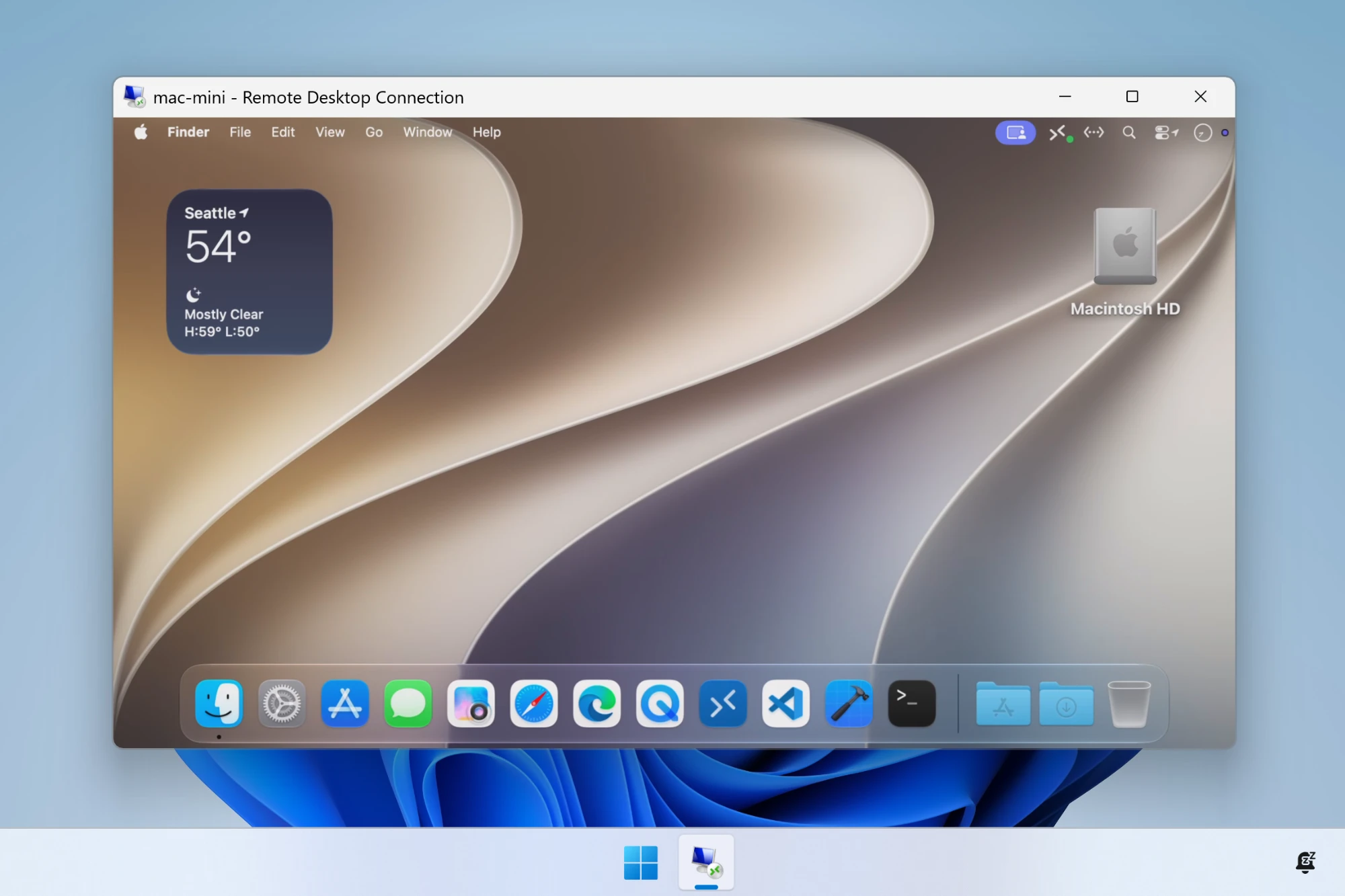
No, and that’s one of the best parts of switching. With VNC, you have to find, install, and trust a third-party client on every device you connect from. With RDP, the client is often already there:
- Windows has Remote Desktop Connection (
mstsc) built in, and Microsoft’s Windows App is a free download. - Macs can use Windows App from the Mac App Store.
- Linux has FreeRDP, which most distributions package.
ProRDP works with all of these. No accounts, no cloud relay, and nothing extra to install on the device you’re connecting from.
How does ProRDP make RDP work on a Mac?
ProRDP is a native RDP server for macOS. It runs on the Mac you want to connect to, uses the Mac’s hardware video encoder to stream the screen, and speaks the same RDP that Windows’ own Remote Desktop does. To any RDP client, your Mac looks just like a Windows PC.
Getting started takes a few minutes:
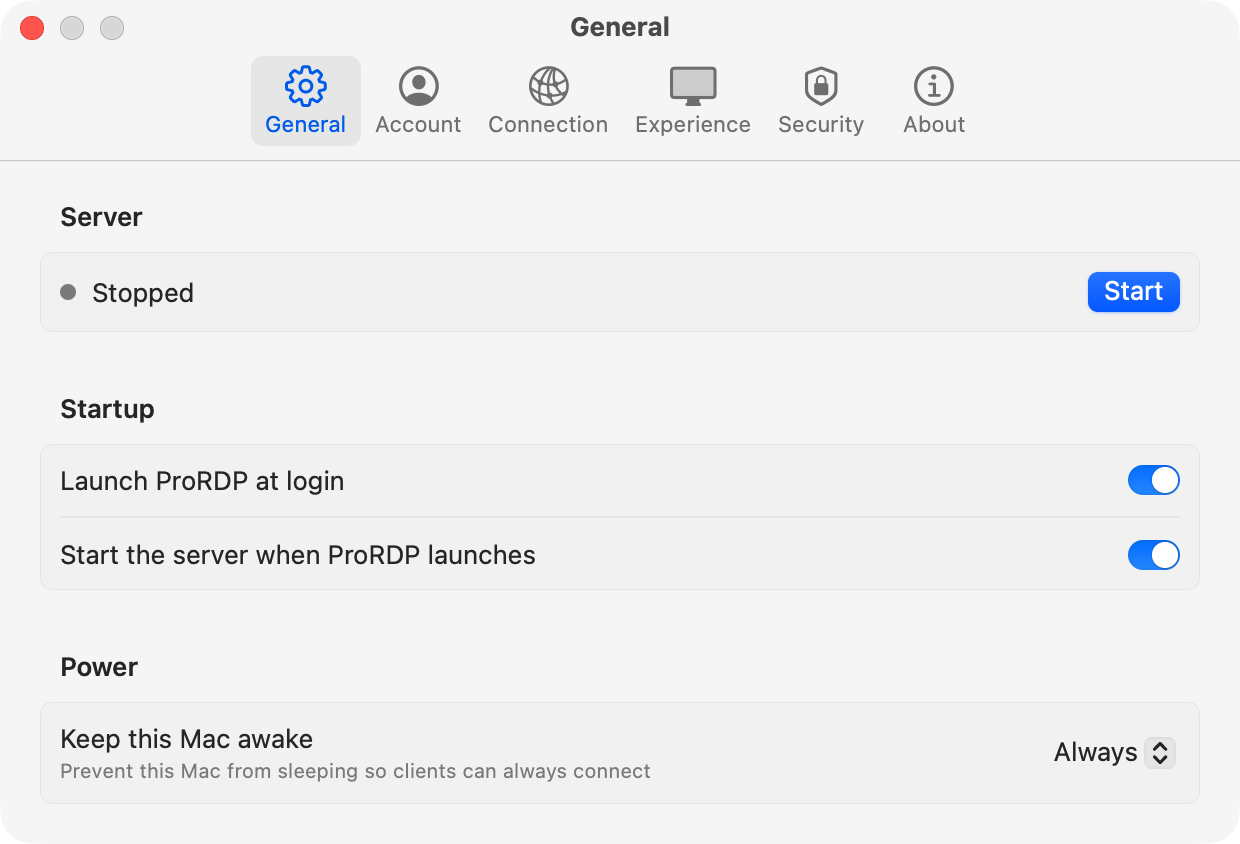
- Install ProRDP on your Mac and grant it the Screen Recording and Accessibility permissions it asks for.
- Set a username and password in the Account pane. These are what your RDP client signs in with.
- Click Start in the General pane. ProRDP shows the address to connect to.
Then open your RDP client on another device, enter that address, and sign in:
ProRDP also handles the things that are awkward on a Mac specifically. You can choose whether a session gets its own virtual display sized to your window, takes over the Mac’s screens like a Windows PC would, or mirrors the physical screen for helping someone in person. It keeps the Mac awake so it’s always reachable, and it can map Ctrl to Command so Windows shortcuts like Ctrl+C work as expected.
For the full walkthrough, including connecting from Windows, another Mac, and Linux, see How to RDP into a Mac.
Is ProRDP free?
Yes. ProRDP is free for home and personal use, on as many Macs as you like, with no account, no sign-up, and no artificial limits on performance or features. Everything stays on your own network.
So which should you use?
If you only need to check on a Mac now and then, Screen Sharing with one of the VNC clients above will get the job done. But if you’ve ever wished connecting to your Mac felt as smooth as connecting to a Windows PC, a better VNC client won’t get you there. Switching to RDP will.